Mac storage full: why and how to fix it
When your Mac says storage is full, or System Data looks huge and you can’t tell why, the cause is usually one of a few things: the Trash, Downloads, backups, or space macOS holds back. Here’s how to find which one it is, and how to see the folders behind it.
The short answer
Work from categories to folders. Storage in System Settings tells you which category is large, as Apple describes in Free up storage space on Mac. Where to find it in your macOS version is in How to check storage on a MacBook. If the large category is System Data, or the numbers don’t add up, look at the causes below.
To go from a category to the actual folders, open Storage Menu from the menu bar, hover over the full volume, and click Analyze.
Download Storage Menu on the Mac App Store
Why storage can look full for no reason
System Data is a catch-all
Apple describes System Data, called Other in earlier versions, as a general category that measures the storage space used by all Apple and third-party files that don’t belong to a more specific category. There is no single thing to delete, so look at the files instead of the label.
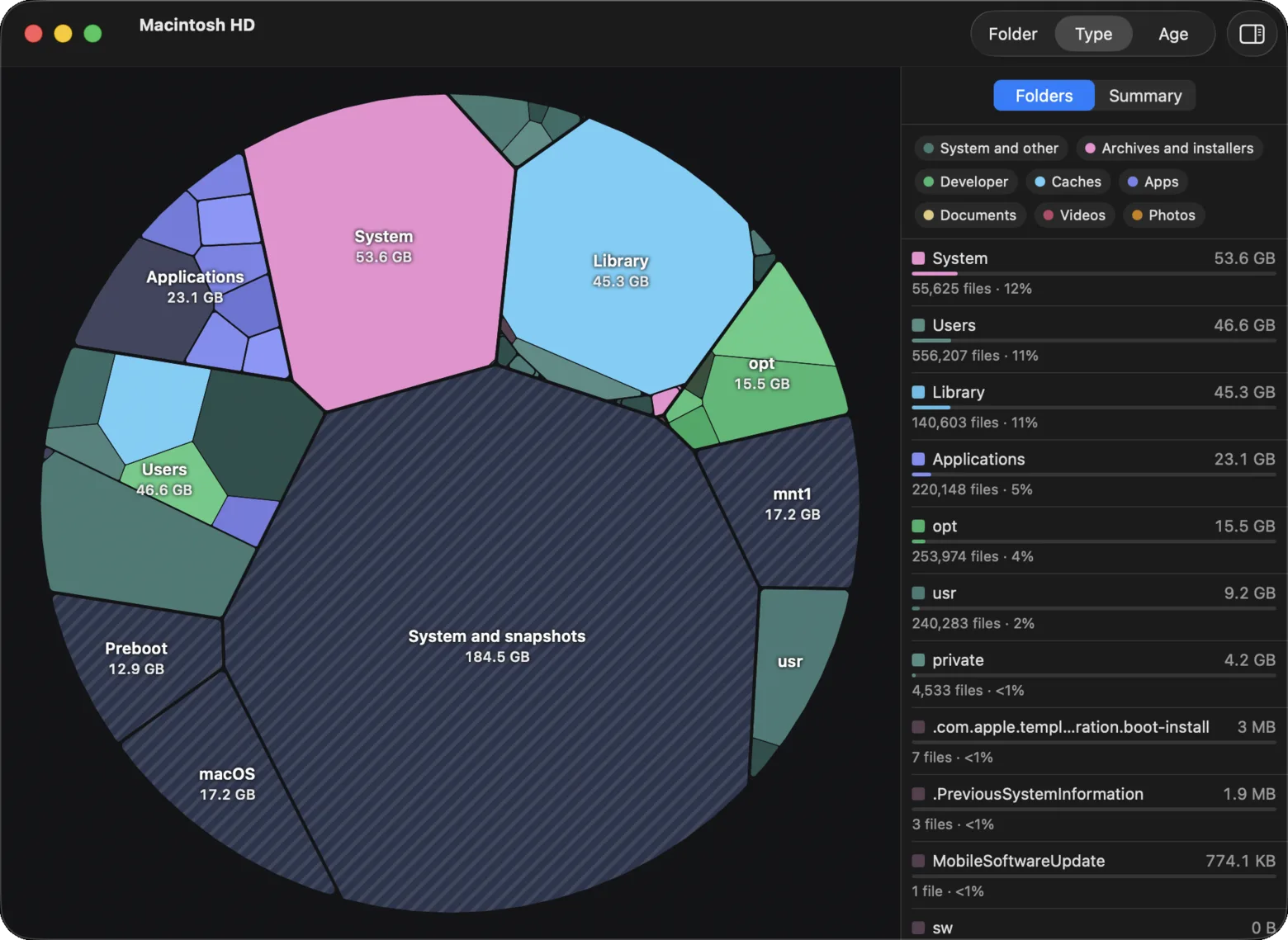
Coloring the disk map by Type shows what kind of files fill the disk: Caches and Developer files get their own colors, apart from Videos, Photos, and Documents.
Time Machine local snapshots
If you use Time Machine with Back Up Automatically on, your Mac keeps local snapshots of the startup disk. Apple says it saves one approximately every hour and keeps it for 24 hours, plus an additional snapshot of your last successful backup until space is needed. Apple also says your Mac counts the space used by snapshots as available storage, and deletes them as they age or as space is needed. Details are in About Time Machine local snapshots.
Snapshots aren’t folders you can open, so the disk map draws that space as striped cells. Mac disk space analyzer: find large folders explains what else they include.
Space you deleted hasn’t come back
If free space doesn’t grow after you delete files, check that you emptied the Trash. Files in the Trash keep using space.
Other volumes share the same container
On Macs with APFS, volumes in one container share its free space, so another volume can fill the disk. Apple explains this in See if your Mac shares space across APFS volumes. Storage Menu lists each local volume in its panel.
Once you know the cause
Apple’s cleanup steps, from emptying the Trash to moving media to another drive, are listed in Mac startup disk almost full: what to do. That guide also shows how to get a warning before a volume fills up again.
Storage Menu doesn’t delete files. To remove one you found on the map, choose Show in Finder, move it to the Trash, then empty the Trash.
Questions
Why is my Mac storage full when I have few files?
Space can be used by System Data, local snapshots, other volumes in the same APFS container, or a Trash you haven’t emptied. Storage in System Settings shows the categories, and the disk map shows the folders.
Can I delete System Data?
Apple describes it as files that don’t belong to a more specific category, so there is no single item to delete. Find what is large first, and only remove files you understand.
Find the folders behind System Data: get Storage Menu on the Mac App Store.