How to check storage on a MacBook
To check storage on a MacBook Air, MacBook Pro, iMac, or Mac mini, open Storage in System Settings. Here is where it lives in each macOS version, what its three numbers mean, and why your drive looks smaller than the size on the box.
The short answer
In macOS Ventura 13 or later, choose Apple menu > System Settings, click General in the sidebar (you may need to scroll), then click Storage. In Monterey and earlier, choose Apple menu > About This Mac, then click Storage. Apple lists both paths in Free up storage space on Mac, and they are the same on every Mac model.
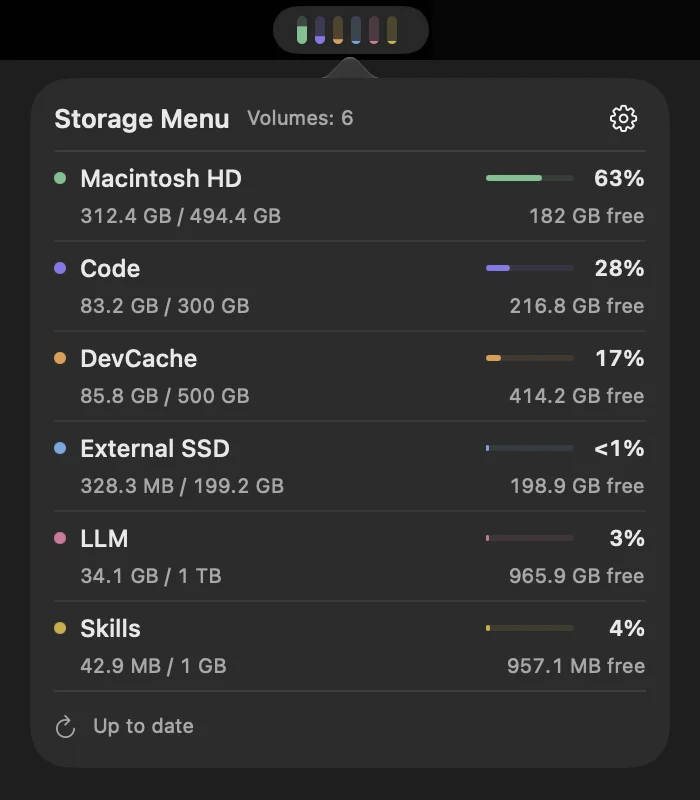
If you check storage often, Storage Menu keeps used and free space for each volume in the menu bar, so you don’t have to open settings.
Download Storage Menu on the Mac App Store
Size, used, and available
Three numbers describe a drive, and they answer different questions:
- Size is how much the drive can hold. Finder’s Get Info window and Disk Utility show it as capacity.
- Used is what your apps, files, and macOS take. In Storage, a colored bar splits it into categories: move the pointer over a color to see how much space that category uses, as Apple describes in See used and available storage space on your Mac.
- Available is what is left, shown in light gray on the same bar. This is the number to watch before a macOS update or a large download.
Click the More Info button next to a category for details and options for managing it, as described in Free up storage space on Mac.
Why the drive looks smaller than advertised
A Mac sold with 256 GB doesn’t show 256 GB free on day one. Apple gives the reasons in How storage capacity is measured on Apple devices: storage makers count 1 GB as 1 billion bytes, the drive’s formatting uses some of the space, and the operating system uses more before you add a single file.
Check storage in Terminal
For a quick reading without opening settings, run this in Terminal:
df -H /It prints the size, used space, and free space (Avail) of the startup volume. The -H option counts in powers of 1,000, the way drive makers do.
External drives and other volumes
Storage in System Settings is about the startup disk. For an external hard drive, SSD, or USB stick, use Finder, Disk Utility, or Terminal, as described in How to check external drive space on a Mac.
Storage Menu lists the startup disk and every connected local volume together, each with its own row:
Storage shows categories, not folders. To find the folders behind a large category, read Mac disk space analyzer: find large folders. If space is already tight, start with Mac startup disk almost full: what to do.
Questions
How do I check storage on a MacBook Air or MacBook Pro?
Choose Apple menu > System Settings > General > Storage. On macOS versions before Ventura, choose Apple menu > About This Mac > Storage.
How do I check storage on a Mac with Monterey?
Choose Apple menu > About This Mac, then click Storage.
How much storage does my Mac have?
Select your startup disk in Finder and choose File > Get Info, or open Disk Utility, to see its capacity. Expect a lower figure than the advertised size, for the reasons Apple gives in How storage capacity is measured on Apple devices.
Want the numbers without opening settings? Get Storage Menu on the Mac App Store.