Mac startup disk almost full: what to do
When the startup disk on your MacBook Air, MacBook Pro, or other Mac is full or almost full, you may not have enough space to download, install, or copy files. The steps are the same on every Mac: see what uses space, free some up with Apple’s tools, and set your own warning for each volume.
The short answer
Whether it is a MacBook Air or a MacBook Pro, the startup disk is the volume macOS runs from, usually named Macintosh HD. Work in this order: empty the Trash, clear your Downloads folder, then find the folders that hold the most data and remove or move what you no longer need. The details are below, and they come from Apple’s Free up storage space on Mac.
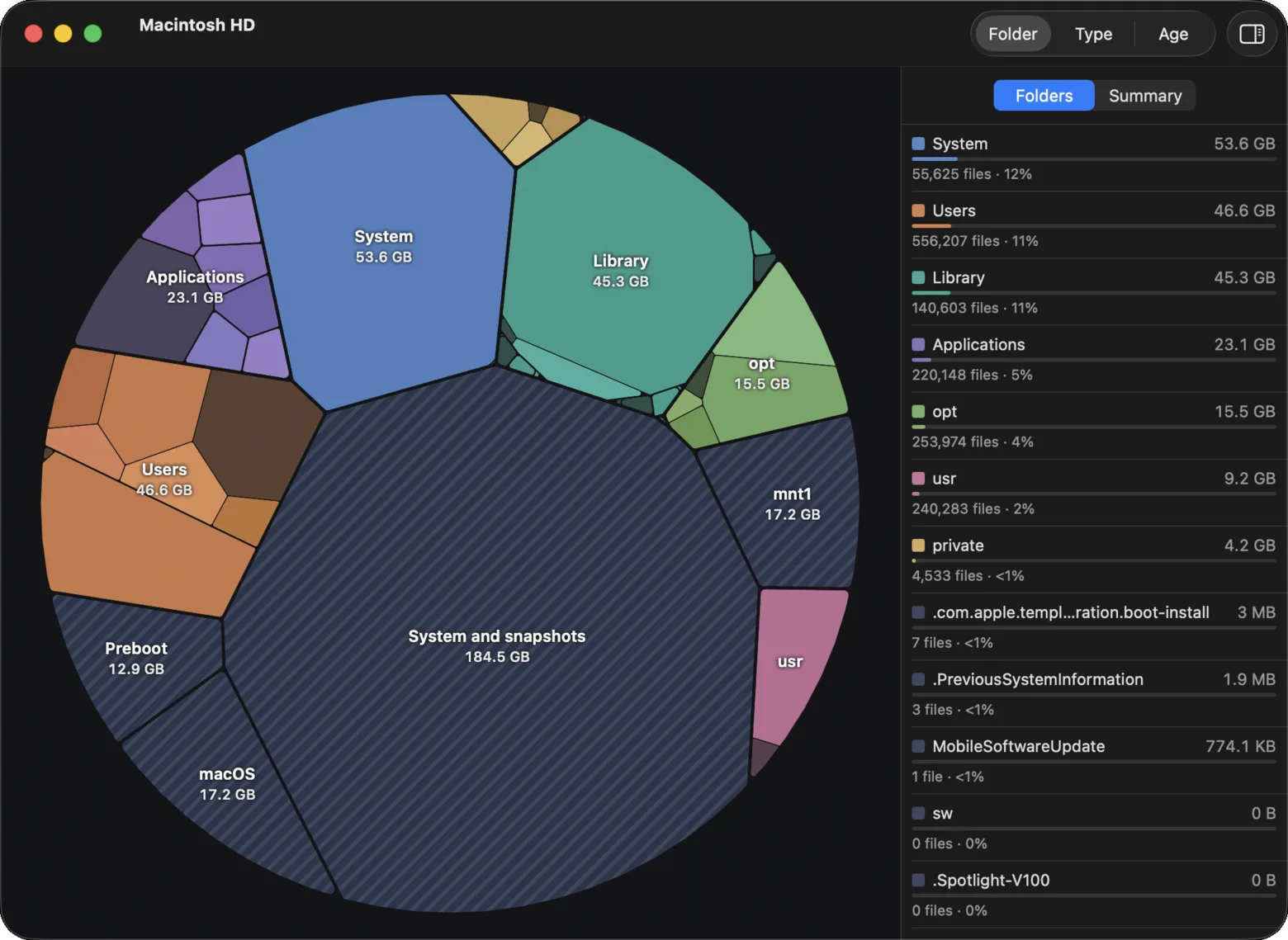
To find the biggest folders on the full disk, click Storage Menu in the menu bar, hover over the startup disk, and click Analyze.
Download Storage Menu on the Mac App Store
Why free space matters
Apple’s guide Free up storage space on Mac covers what to do when your startup disk is almost full, or when you don’t have enough storage space to download, install, or copy.
macOS also uses space on the startup disk to swap unused data out of memory. Activity Monitor shows this as Swap Used.
See what uses space
Storage in System Settings shows how much space each category of files uses. If you see a More Info button next to a category, click it for more information and options for managing that category. Where Storage lives in your version of macOS is in How to check storage on a MacBook.
A category doesn’t tell you which folder to clean. On a nearly full startup disk, that is the question that matters, so click Storage Menu in the menu bar, hover over the startup disk, and click Analyze. The biggest folders are the biggest cells, and Control-click shows any of them in Finder. Mac disk space analyzer: find large folders explains the rest of the map.
Free up space with Apple’s steps
- Use the storage recommendations. Storage settings offers Store in iCloud, Optimize Storage, and Empty Trash automatically.
- Empty the Trash. A file you move to the Trash keeps using space until you empty the Trash.
- Delete files in your Downloads folder.
- Delete what you don’t need. Remove media you can stream or download again, old iPhone or iPad backups, and apps you no longer use.
- Move files to another drive. If you have an external drive, you can move files there, such as your Photos library or iMovie library.
To make space for a task like a macOS update, Apple notes that starting up in safe mode clears certain system caches, which macOS creates again as needed. To leave safe mode, restart your Mac normally.
Set your own warning for each volume
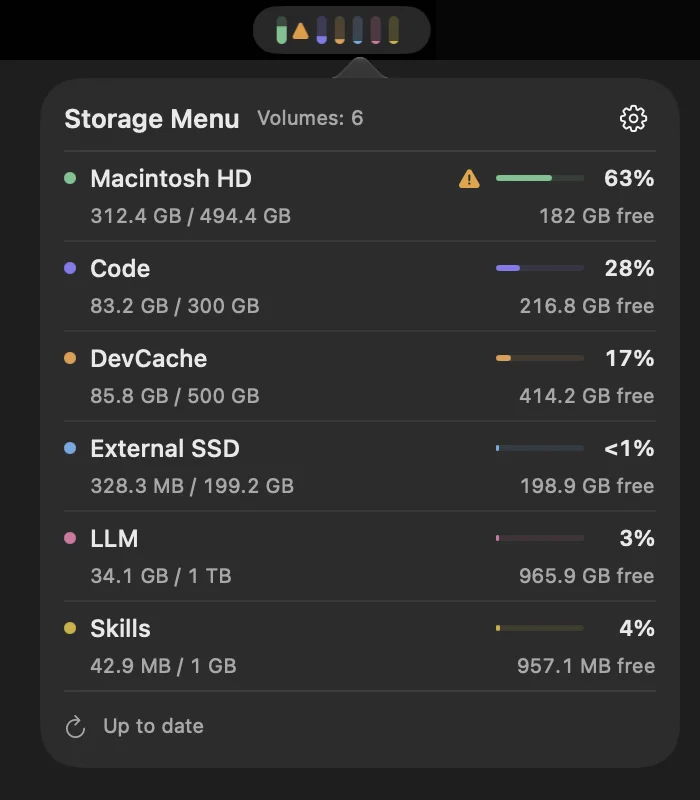
Apple’s guidance is about the startup disk. Storage Menu lets you set a warning threshold for each volume, including external drives, from 1% to 100%. Warnings are on at 90% by default.
When a volume reaches its threshold, an orange warning symbol appears next to its bar in the menu bar and in the panel. It stays until usage drops below the threshold or you change the setting.
Time Machine deletes the oldest backups when the backup disk is full, as Apple describes in Back up your Mac with Time Machine. If one of your volumes is a backup disk, you can turn off its warning.
If your Mac says storage is full and you don’t know why, read Mac storage full: why and how to fix it. For drives other than your startup disk, see How to check external drive space on a Mac.
Questions
Why does my MacBook Air say the startup disk is full?
The startup disk has little free space left. Files, apps, the Trash, and space macOS uses itself all count. Storage in System Settings shows which categories are large, and the disk map shows the folders.
Is the process different on a MacBook Pro?
No. Apple’s steps in Free up storage space on Mac apply to any Mac, and so do the warnings in Storage Menu.
Does Storage Menu send notifications?
No. Warnings appear in the menu bar and in the panel.
Does Storage Menu free up space?
No. It shows used and free space, warns you when a volume reaches its threshold, and maps what fills each volume. It doesn’t delete files. To free up space, use Show in Finder from the map and remove what you don’t need, or follow the steps above.
Catch a filling startup disk before it is full: get Storage Menu on the Mac App Store.