Mac disk space analyzer: find large folders
Storage in System Settings shows how much space each kind of file uses. To see which folders and files take up the space, you need a disk space analyzer. Storage Menu includes one: choose Analyze on a volume to open a map of its folders.
The short answer
For an overview, use Storage in System Settings. In macOS Ventura or later, choose Apple menu > System Settings, click General, then click Storage. It groups used space into categories, as Apple describes in See used and available storage space on your Mac. It doesn’t draw a map of your folders.
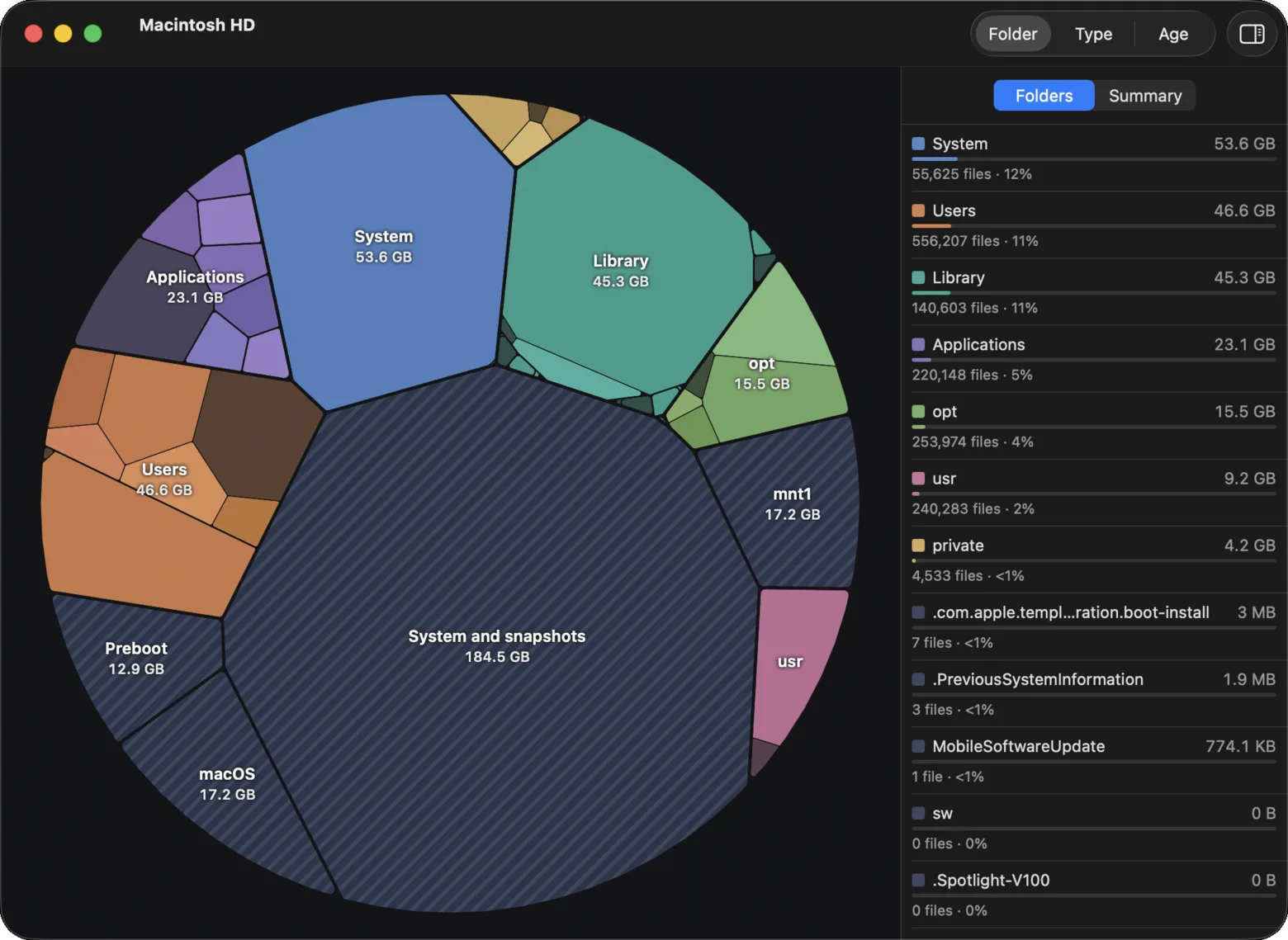
To see every folder by size, use Storage Menu. Click it in the menu bar, hover over a volume, and click Analyze. A map of the volume’s folders opens, each folder sized by the space it takes. Click a folder to go inside it.
Download Storage Menu on the Mac App Store
See categories with Storage in System Settings
- Open Storage. Click All Volumes if your internal disk has more than one volume or container.
- Click More Info. Next to a category such as Applications, Documents, Messages, or Trash, More Info opens options for managing that category. Apple lists these in Free up storage space on Mac.
- Check System Data. It covers Apple and third-party files that don’t belong to a more specific category. It was called Other in earlier versions.
- Review Downloads and the Trash. Files in the Trash keep using space until you empty it, and Apple suggests deleting files you no longer need from Downloads.
On macOS before Ventura, choose Apple menu > About This Mac > Storage instead.
Map every folder with Storage Menu
- Open the panel. Click Storage Menu in the menu bar. Each local volume has its own row, including external drives.
- Choose Analyze. Hover over a volume and click Analyze, or Control-click the volume and choose Analyze. Each volume opens in its own window.
- Allow reading. The first time, a dialog asks you to choose the volume. Click Allow Reading. Storage Menu remembers the choice and doesn’t ask again.
- Read the map. The circle is as large as the volume’s used space, the same number the menu bar shows. Cells fill in while the scan runs, nested three folders deep.
- Go inside a folder. Click a folder to open it. Press Escape, or click a folder in the path over the map, to go back.
Color by folder, type, or age
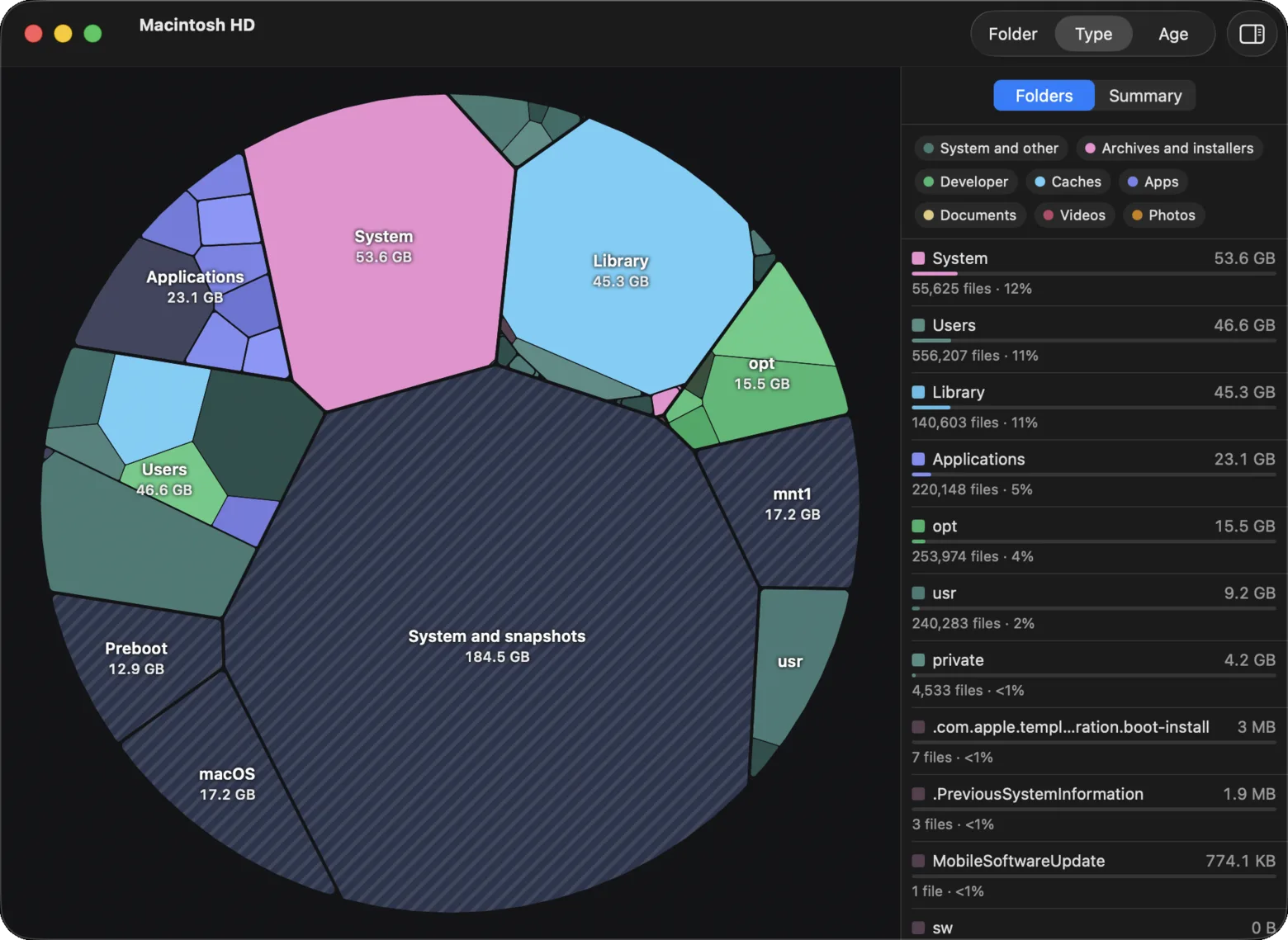
The toolbar switches the map’s colors. Folder gives each folder its own color. Type colors space by kind of file: Videos, Photos, Apps, Developer, Caches, Documents, Archives and installers, and System and other. Age colors files by modification date, from under 1 month to over 2 years. With Type or Age, a legend names the colors, and clicking an entry lights it up on the map.
Find large files in the Summary
The sidebar’s Folders tab lists the folder on screen by size, in step with the map. The Summary tab shows space by type and by age, the Largest Files, and the folders with the Most Items.
Open what you find
Control-click an item on the map or in the list to choose Show in Finder, Quick Look, or Copy Path. The shortcuts are Command-R for Show in Finder, Space for Quick Look, and Option-Command-C for Copy Path.
Storage Menu never changes or deletes anything. To remove a file, show it in Finder and move it to the Trash, then empty the Trash.
What the striped cells mean
Some used space doesn’t belong to a folder the scan can read: local snapshots, purgeable space, other volumes in the same APFS container, and folders without permission. The map shows that space as striped cells, so the circle still matches the volume’s used space. Apple explains shared space in See if your Mac shares space across APFS volumes.
If macOS privacy protection keeps some folders closed, a banner says how many couldn’t be read and offers Open Privacy Settings, where you can give Storage Menu Full Disk Access. You can also dismiss the suggestion.
Other ways to look inside folders
You can open folders such as Downloads in Finder, or run du in Terminal, which reports how much space folders use. To list the size of each item in your home folder, run:
du -sh ~/*Folders that macOS privacy protection keeps closed report “Operation not permitted.” Apple’s Terminal User Guide explains how to use Terminal.
Related guides: Mac startup disk almost full: what to do and How to check external drive space on a Mac.
Questions
Does macOS have a built-in disk space analyzer?
Storage in System Settings shows used space by category and lets you manage each one. It doesn’t show a map of your folders.
Can Storage Menu analyze external drives?
Yes. Analyze works on every volume in the panel: your Mac’s internal storage and visible local volumes, including external drives. Network volumes aren’t included.
Does the scan upload anything?
No. The scan runs on your Mac. Nothing is changed or uploaded, and Storage Menu collects no data.
Why does System Data use so much space?
It measures Apple and third-party files that don’t belong to a more specific category. Apple’s storage guide explains it.
See what fills your disk
Use Storage in System Settings for the categories, and Storage Menu to see the folders and files behind them. It also keeps used and free space for every volume in your menu bar.