How to check external drive space on a Mac
See how much space is left on an external hard drive, SSD, or USB flash drive with Finder, Disk Utility, or Terminal, and keep it visible while the drive is connected.
Check external drive space in Finder
- Connect the drive. It’s listed below Locations in the Finder sidebar.
- Click the drive to open it, then choose View > Show Status Bar. The status bar shows the number of items and the amount of available disk space.
- For more information, select the drive and choose File > Get Info or press Command-I.
If the drive isn’t in the sidebar, choose Finder > Settings, click Sidebar, then select the items you want to see in the sidebar. Apple describes these settings in See the devices connected to your Mac.
For your Mac’s internal drive, see How to check storage on a MacBook.
Use Disk Utility
Open Disk Utility from Applications > Utilities and select the external volume in the sidebar. Disk Utility shows the format, total capacity, and available space.
To see every device with its containers and volumes, choose View > Show All Devices. If a volume was ejected, select it and click Mount.
Use Terminal
To list every volume in /Volumes, including your startup disk, with size, used space, and free space, run:
df -H /Volumes/*The list may also include helper volumes, such as Recovery. To check one drive, put its name in quotes:
df -H "/Volumes/My Drive"The Avail column shows free space. The -H option uses powers of 1,000, like drive makers. With -h, sizes use powers of 1,024 and look smaller.
Why a drive shows less space than expected
Apple explains that drive makers measure capacity in decimal units, and that formatting a drive uses some of its space. See How storage capacity is measured on Apple devices. If the gap is larger, check these:
- Trash: deleted files keep using space until you empty the Trash.
- Several volumes: the drive may be divided into more than one volume. Disk Utility lists each one with View > Show All Devices.
- Time Machine: on a backup disk, Time Machine deletes the oldest backups when the disk is full, as Apple describes in Back up your Mac with Time Machine.
Keep external drives visible in the menu bar
Finder and Disk Utility show storage when you open them. Storage Menu keeps each connected local volume in the menu bar with its own color. A drive appears when you connect it and disappears when you eject it.
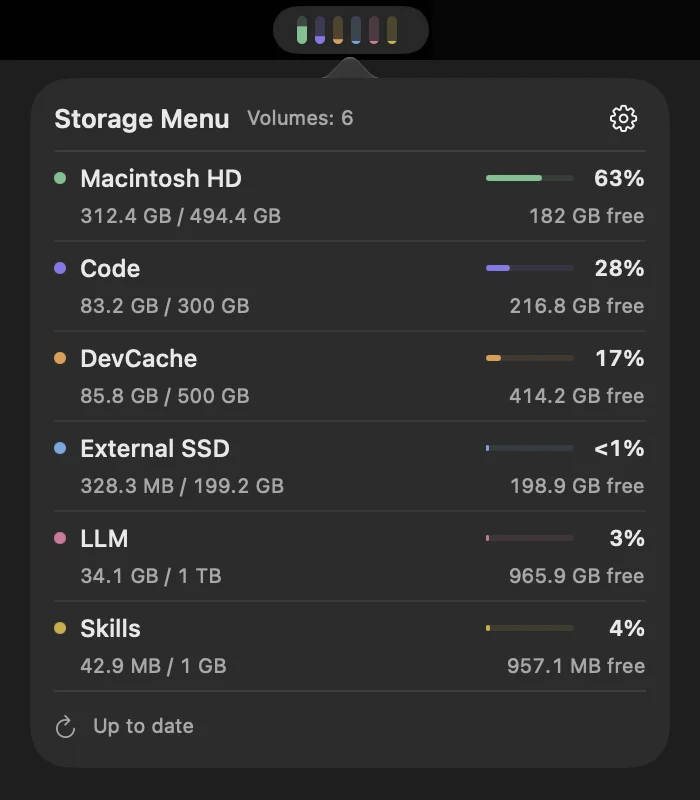
You can also set a warning threshold for each drive. When a drive reaches it, an orange warning symbol appears in the menu bar. See How to show disk space in the Mac menu bar.
To see what fills a drive, hover over it in the panel and click Analyze. Storage Menu maps the drive’s folders by size, and you can color the map by file type or age to find old videos, archives, and installers.
Questions
Why doesn’t my external drive show up?
Open Disk Utility and choose View > Show All Devices. If the volume is listed but was ejected, select it and click Mount.
Does Storage Menu show network drives?
No. Storage Menu shows your Mac’s internal storage and visible local volumes, including external drives. Network volumes aren’t included.